
You Can Now Edit Your Patterns with ChatGPT
Open Knytstudio in ChatGPT's built-in browser and ask it to swap threads, add a border, merge colours or find a pattern. You watch every change on the chart.
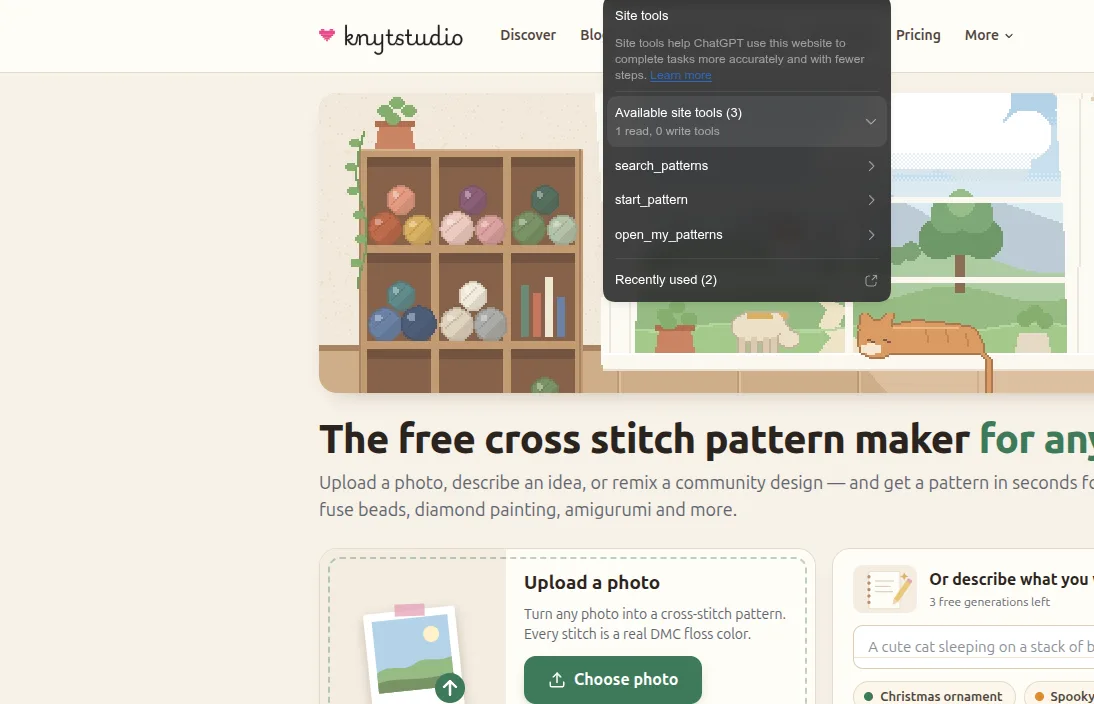
You can now ask ChatGPT to change your pattern, and watch it happen.
Open Knytstudio in the built-in browser of the ChatGPT desktop app, open a pattern and type what you want: “Swap the reds for darker ones.” “Put a two-stitch border around it in DMC 310.” “This has 41 colours, merge the ones that look almost the same.” ChatGPT makes the change in the editor, and you see it on the chart straight away. If you don’t like it, press Undo.
What you can ask
ChatGPT can read your pattern: its size, every thread with its DMC code and how many stitches use it, and the chart itself. Then it can change it with the same tools you use:
- Swap a thread. “Replace DMC 321 with a darker red.” Every stitch of that colour changes in one go.
- Paint and erase. “Add a two-stitch border in black.” “Clear the background behind the cat.”
- Use fewer colours. “Merge the greens that look almost the same, so I need fewer skeins.”
- Resize. “Make it 120 stitches wide and keep the bottom edge where it is.”
- Tidy up. “Remove the colours nothing uses.” “Rename it Autumn Fox.”
- Look at it differently. “Show the symbols so I can check the chart.” “Show the realistic preview.”
- Take it back. “Undo that.”
It also works outside the editor. On your dashboard ChatGPT can find and open your patterns (“open my fox pattern”). Anywhere on the site it can search the community patterns (“show me Halloween patterns”), and it opens the Discover page with the results so you see them too.
Colour names and codes work both ways. Ask for “black”, “310” or “DMC 310”, and for cross stitch, needlepoint and diamond painting every colour is a real thread: if ChatGPT asks for a shade DMC doesn’t make, Knytstudio picks the nearest thread and says which one. Fuse bead patterns use real Hama and Perler bead colours the same way.
Point at what you mean
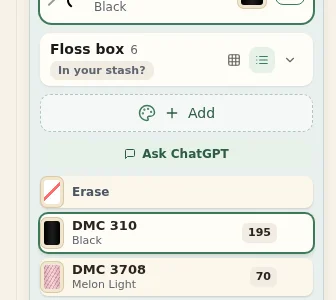
ChatGPT’s browser has an annotation mode: you click something on the page and write a note about it. In Knytstudio, every thread in the palette is a named target. Click “DMC 3708 Melon Light”, write “make this warmer”, and ChatGPT knows exactly which thread you mean and how many stitches use it.
Inside ChatGPT’s browser the palette also gets an Ask ChatGPT button, which opens a suggested prompt about your colour scheme. Nobody else sees it.
You stay in charge
- Every change happens in the open editor, where you can see it.
- Every change is one normal Undo step, and it is saved like your own edits.
- ChatGPT works with your login in that browser, so it can only change patterns you can change. It won’t touch a pattern that is read-only for you, or change a chart while the stitch tracker is open.
- Downloads stay your step. ChatGPT can open the PDF export, and you choose and download.
How to try it
- Open the ChatGPT desktop app and its built-in browser.
- Go to knytstudio.com. When the site-tools icon shows in the address bar, ChatGPT can use Knytstudio’s tools.
- Open a pattern, or make one from a photo.
- Ask for a change in the chat.
The ChatGPT page has more example prompts and the full list of what ChatGPT can do on each page.
How it works
Knytstudio supports WebMCP, a proposed web standard from the W3C Web Machine Learning Community Group. A page describes the actions it offers, like “replace a colour” or “search patterns”, and an AI assistant in the browser calls them instead of guessing where to click. That is faster, it doesn’t miss, and the page decides what an assistant may do.
ChatGPT’s built-in browser supports WebMCP, and Google Chrome is testing it too. Our tools follow the standard, so they are ready for other assistants as they add it.
We’d love to hear what you ask it to do. Send us a note from the Feedback button in the app.
Frequently asked questions
Can ChatGPT edit a cross stitch pattern?
Yes, on Knytstudio. Open a pattern in the built-in browser of the ChatGPT desktop app and ask for the change, for example "swap the reds for darker ones". ChatGPT uses Knytstudio's editing tools, and you see the change on the chart. Every change is one Undo step.
Do I need a paid Knytstudio plan to use it with ChatGPT?
No. The ChatGPT tools are part of Knytstudio for everyone, including the free plan. Downloading a PDF works the same as always: your first pattern is free, after that you unlock a pattern or use Pro.
Does it work in the ChatGPT phone app?
Not yet. Site tools work in the built-in browser of the ChatGPT desktop app. On your phone, Knytstudio works as usual in any browser.
Is Knytstudio made by OpenAI?
No. Knytstudio is an independent pattern maker. It supports WebMCP, an open way for websites to offer tools to AI assistants, and ChatGPT's browser is one of the first places where that works.