
Creating Patterns
Photo to Cross Stitch Pattern
Turn any photo into a stitchable chart: crop, choose size and colors, pick your thread brand, and place it on the canvas.
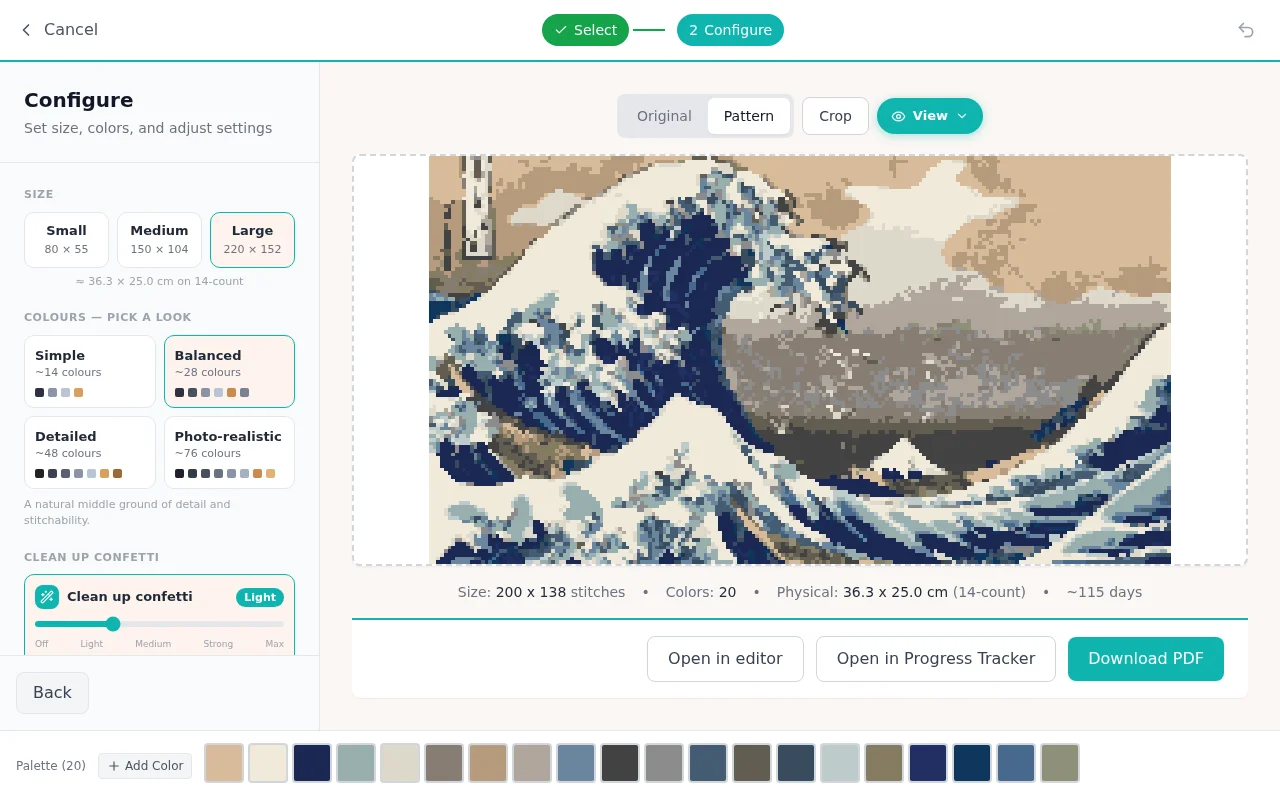
Photo import is a three-step wizard: select, crop, configure. The first two are exactly what they sound like — upload or paste an image, then crop to the part you want. The third step is where your chart takes shape.
The configure step
Size. Set the width and height in stitches. The wizard shows the finished physical size for your fabric count as you adjust, so you know if you are making a coaster or a wall hanging.
Max colors. A slider from 10 to 100. This is the single biggest decision for how the pattern will feel to stitch: every color is a thread you buy, organize, and re-thread.
Thread brand. Choose DMC, Anchor, Sullivans, J&P Coats, or Maxi, and every color in the pattern is matched to a real floss code from that brand — so the legend you print matches the skeins you own.
Image adjustments. Brightness, contrast, and saturation sliders, applied before conversion. A small contrast boost often does more for chart clarity than doubling the colors.
Fabric count. Pick your count (11 to 28) and the physical size estimate updates.
Use the Original / Pattern toggle above the preview to flip between the source photo and the stitchable result while you tune.
Placing it
If the image is bigger than your canvas, you choose: resize the canvas to fit the image, or crop the image to fit the canvas. Either way you land in the editor with a normal, fully editable pattern.
After importing
Two finishing touches make photo patterns dramatically nicer to stitch: run the confetti cleanup to remove scattered single stitches, and add backstitch outlines around the subject to make it pop.
Frequently asked questions
How many colors should I use?
For most photos, 15 to 30 colors is the sweet spot. Fewer colors means a simpler, faster stitch; more colors means finer detail but more thread changes. The preview updates live, so try a few values and trust your eyes.
What kind of photos convert best?
Clear subjects with good contrast against a calm background. Close-ups beat wide shots. If the result looks noisy, raise the contrast slider or reduce the color count.
Can I edit the pattern after importing?
Completely. The imported result is a normal pattern — every tool works on it. Most people clean up stray pixels with the confetti tool and add backstitch outlines on top.
Try it yourself
The Knytstudio editor is free to use in your browser. No install, no signup needed to start.
Open the editor