
Canvas & Pattern Work
Canvas Settings and View Modes
Resize the canvas, style the grid, preview on fabric colors, set knitting gauge, and switch between color, hybrid, and symbol views.
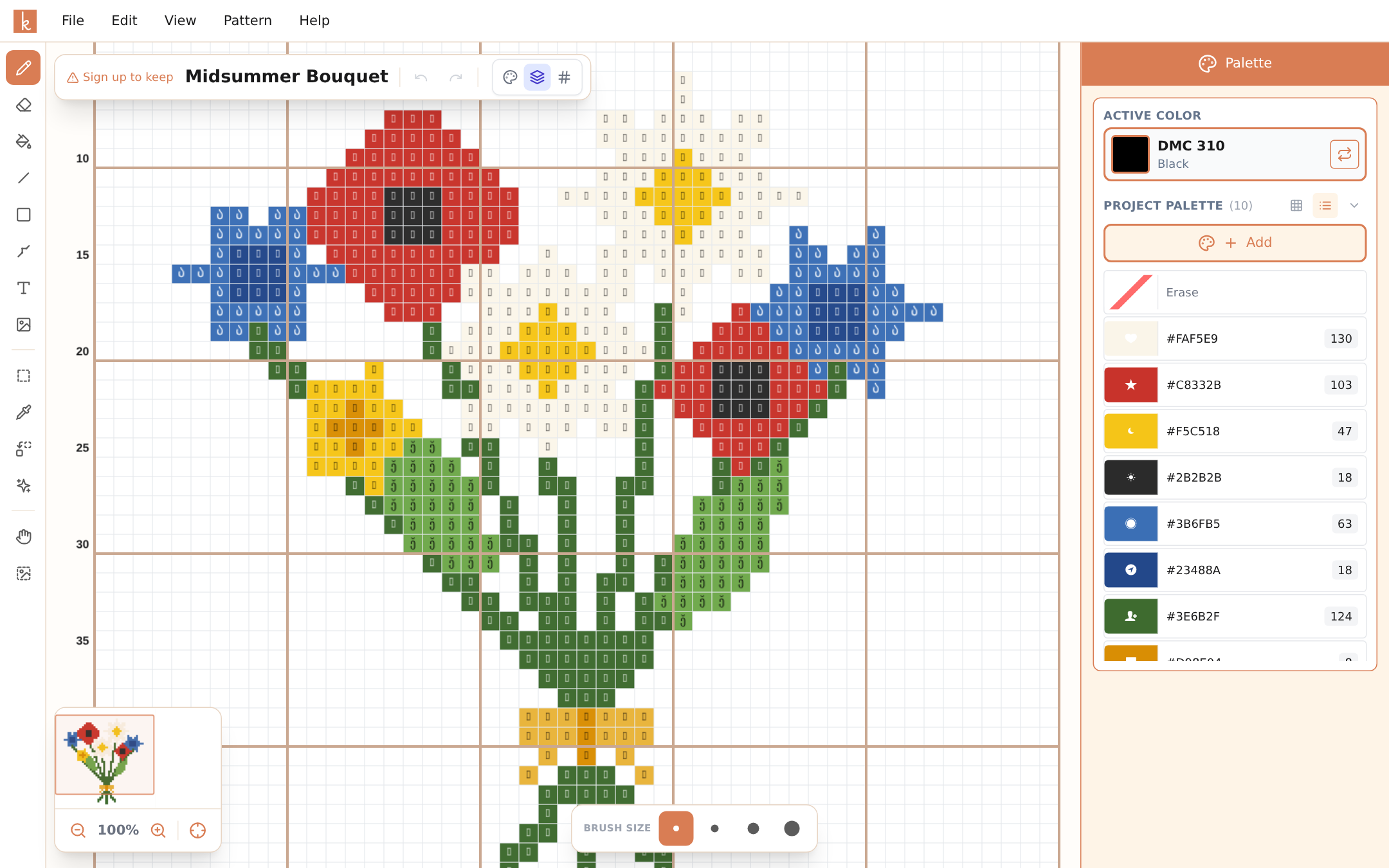
The Canvas Settings dialog (Pattern menu) gathers everything about the surface you are working on; the floating bar at the top of the canvas switches how you look at it.
Size
Patterns go up to 1000 x 1000 stitches. When you resize, existing stitches are preserved and an anchor control decides where new space appears — center it to add an even border, or anchor a corner to extend in one direction.
Grid
Three grid styles (light, dark, high contrast) and three line types you can toggle independently: thin grid lines around each stitch, stronger guide lines every 10 stitches for counting, and center lines marking the middle of the pattern — the usual place to start stitching.
Fabric
For cross stitch, pick the fabric color you plan to stitch on — white, antique white, navy, black, or a custom color — and the canvas previews your design against it. A snowflake pattern looks very different on white than on navy; better to find out before buying fabric.
Gauge and knitting options
Knitting and crochet patterns carry a gauge (stitches and rows per 10 cm), so the grid proportions match real knitted stitches, which are wider than tall. Knitting charts can also show row direction arrows and distinguish flat from circular knitting — flip them on under the knitting tab or the View menu.
View modes
The three icons in the floating pattern bar switch the canvas display:
- Colors — pure color blocks, best while designing.
- Hybrid — colors with chart symbols on top, best for stitching from the screen.
- Symbols — black-and-white symbols only, the classic printed-chart look.
The same three modes are available when exporting, so you can design in color and print in symbols.
Frequently asked questions
How big can a pattern be?
Up to 1000 x 1000 stitches — a million stitches. For reference, an ambitious full-coverage piece is usually 250 to 400 stitches on a side.
Can I resize without losing my work?
Yes. Resizing keeps your existing stitches and lets you choose the anchor — grow from the center to add a border evenly, or from a corner to extend one side.
What is the hybrid view for?
Stitching from the screen. Colors show the design at a glance while symbols disambiguate similar shades — the same reason printed charts use both.
Try it yourself
The Knytstudio editor is free to use in your browser. No install, no signup needed to start.
Open the editor